General
At-a-glance overview for a specific location showing weather, telecom, fuel, generators, chargers, and site settings.

Customer Logo & Location Name
The top-left card displays the customer logo and the selected location name. In this example:
| Element | Value Shown |
|---|---|
| Customer Logo | BC Hydro "Power smart" logo |
| Location Name | Buffalo Inn - 2 |
When you switch customers or locations using the header dropdowns, this card updates to reflect the newly selected customer logo and location name.
Status Cards (Top Row)
Four status cards span the top of the page, giving you an instant summary of conditions at the selected location:
| Card | Description | Example Value |
|---|---|---|
| Location Heading | Customer logo and location name | BC Hydro — Buffalo Inn - 2 |
| Weather | Current temperature, weather icon, and condition. Click the arrow ( ) for more weather details. ) for more weather details. |
13°F — overcast clouds |
| Telecom / Camera | Telecom status indicator (Green = connected, Red = disconnected). Camera icon links to the Cameras page. | Telecom: connected (green) • Camera: linked |
| Fuel % | Current fuel tank level. Click the arrow for fuel details. | 50 % |
Location Card
The top-right of the page displays the Location card — a compact panel showing the physical location of the currently selected site with a real-time address and embedded map.
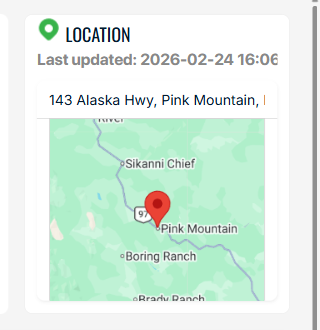
| Element | Description |
|---|---|
| Green Pin Icon | Visual indicator next to the "LOCATION" label |
| Last Updated | Timestamp of the most recent GPS position report from the on-site unit (e.g., 2026-02-24 16:06:07 PST) |
| Street Address | Human-readable address automatically converted from GPS coordinates (see Real Address Conversion below) |
| Google Map | Embedded interactive map centered on the site's GPS coordinates with a red pin marker |
Clicking the Location card navigates to the Maps page for a full-screen map view of the site.
Real Address Conversion
Each e-Boost unit reports its GPS coordinates (latitude and longitude) from on-site hardware. The application automatically performs reverse geocoding to convert these raw coordinates into a human-readable street address using the Google Maps API.
For example, coordinates 57.041°N, 122.509°W are automatically resolved to:
143 Alaska Hwy, Pink Mountain, BC V0C 2B0, Canada
This means operators always see a recognizable address rather than raw GPS numbers, even for remote off-grid locations along highways or in wilderness areas. The address updates automatically whenever the unit reports a new GPS position.
Site Picture
Adjacent to the location/map section, the General page shows a photograph of the physical e-Boost unit deployed at the location. For Buffalo Inn - 2, this is an e-Boost Pod — a containerized off-grid EV charging solution:

Generator & Battery Table
Below the status cards, a table lists every generator at the location with real-time status indicators:
| Column | Description |
|---|---|
| (Row Label) | Generator name — e.g., Gen_01, Gen_02, Gen_03 |
| Generator | Color-coded status icon: Green = Able to run / Running Blue = Running under load Red = Faulted — generator has an active shutdown alarm or fault condition and will not run until addressed Grey = Off / Unavailable Clickable — navigates to the Power page for that generator. |
| Battery | Battery voltage displayed as a rounded number inside a colored circle (e.g., 13, 14). Clickable — navigates to the Power page for that generator. |
Generator Mouseover Tooltip
Hovering over a Generator status icon reveals a tooltip with detailed status information:
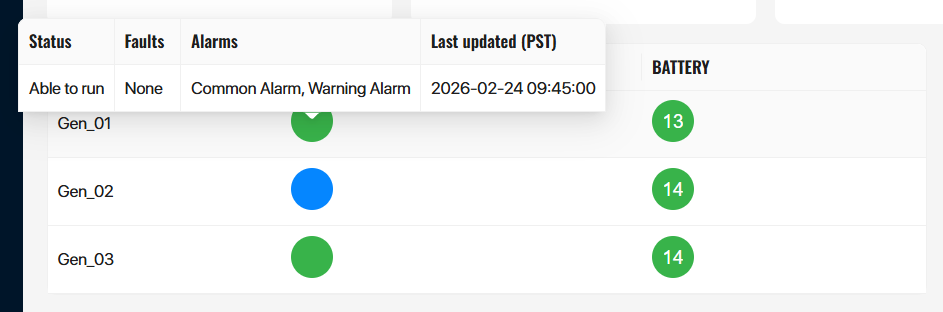
The tooltip displays a table with the following columns:
| Tooltip Column | Description | Example (Gen_01) |
|---|---|---|
| Status | Current operational state of the generator | Able to run |
| Faults | Active fault conditions (or "None") | None |
| Alarms | Active alarm conditions (comma-separated) | Common Alarm, Warning Alarm |
| Last updated (PST) | Timestamp of the most recent data update | 2026-02-24 09:30:00 |
Battery Mouseover Tooltip
Hovering over a Battery voltage indicator reveals a tooltip with battery health details:
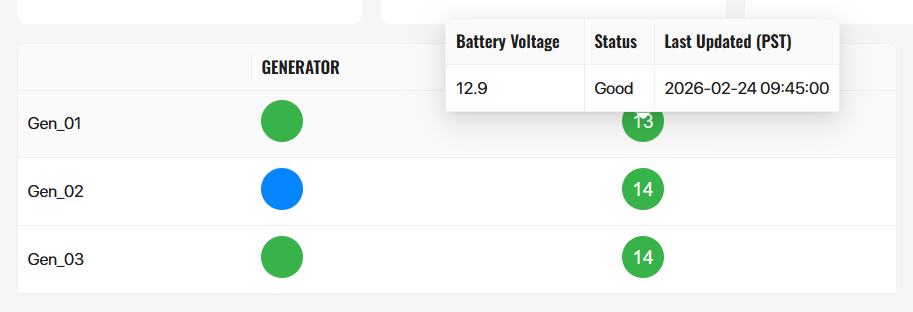
The tooltip displays a table with the following columns:
| Tooltip Column | Description | Example (Gen_01) |
|---|---|---|
| Battery Voltage | Precise voltage reading | 12.9 V |
| Status | Health assessment of the battery | Good |
| Last Updated (PST) | Timestamp of the most recent reading | 2026-02-24 09:30:00 |
Chargers Section
To the right of the generator table, the Chargers section lists every EV charger at the location. For Buffalo Inn - 2:
| Charger | Status Indicator |
|---|---|
| Flo 50 (Charger ID: 5) | Grey circle — status icon. Clickable → opens Charger detail. |
| Flo 50 (Charger ID: 6) | Grey circle — status icon. Clickable → opens Charger detail. |
Settings Table
At the bottom of the General page, a settings table displays the configuration for the selected location. The values below are the actual settings for Buffalo Inn - 2:
| Setting | Value |
|---|---|
| Type | Pod |
| Generation Capacity | 100 kW |
| Generator Type | 2 * Winco PSS11B2W-03/A 11kW & Taylor TG150P 150kW |
| Level3 Charger(s) | Flo 50 kW and Flo 50 kW |
| Level2 Charger(s) | There are no Level 2 Chargers |
| Propane Capacity | 2000 Gallons |