Cameras
AI-powered site security and monitoring cameras with real-time object detection, event review, and recording — powered by Frigate NVR.
About Frigate NVR
The Cameras page embeds the Frigate NVR (Network Video Recorder) dashboard directly into e-Boost Realm. Frigate is a locally-operated, AI-powered NVR that processes video streams from on-site IP cameras using local computing resources — no cloud services required.
All AI detection and video recording happens on-site at the e-Boost unit. No footage leaves the local network unless explicitly configured, making Frigate ideal for off-grid EV charging stations where bandwidth may be limited and local processing is preferred.
| Feature | Description |
|---|---|
| AI Object Detection | Real-time detection of people, vehicles, animals, and 90+ object types |
| Motion-Triggered | Low-overhead motion detection determines where to run the more expensive AI object detection, conserving CPU/GPU resources |
| Local Processing | All processing happens on-site using hardware acceleration (Intel GPU) — no cloud dependency |
| Event Recording | Continuous or event-based recording with configurable retention policies |
| Smart Streaming | Camera images update once per minute when idle; seamlessly switches to live playback when motion or objects are detected |
Dashboard Layout
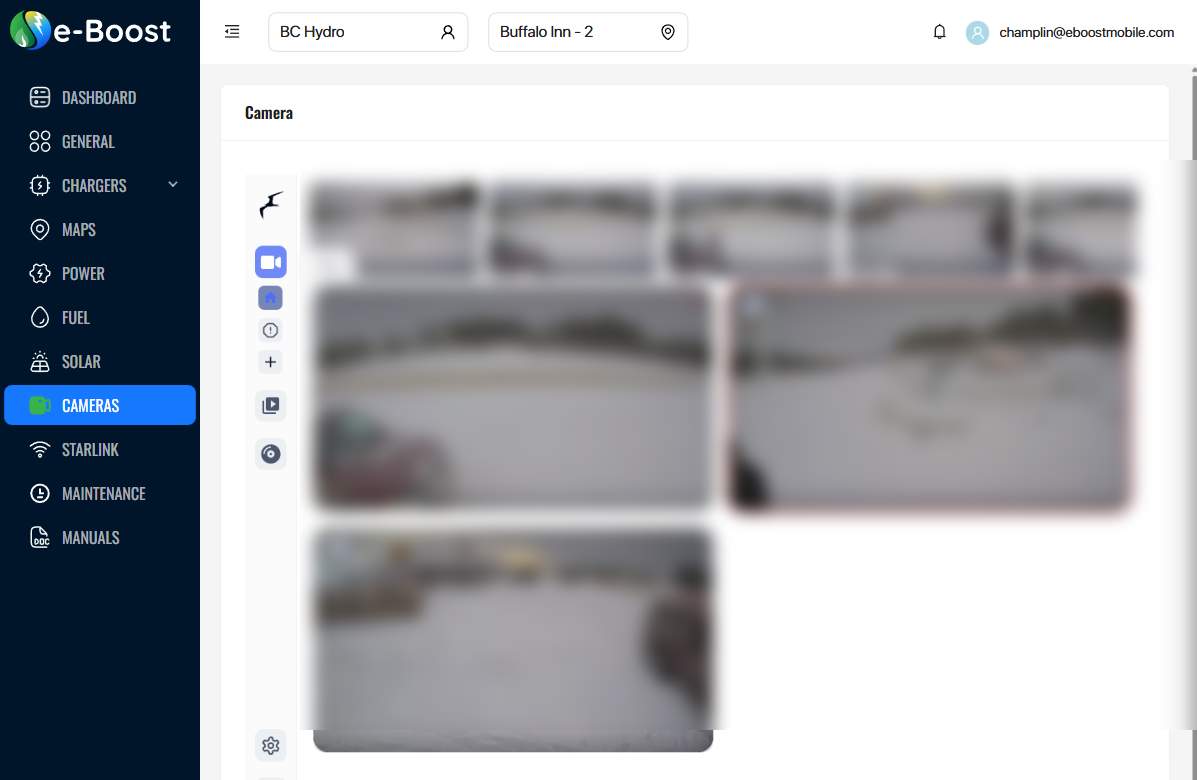
The Frigate dashboard displays a grid of camera views from the selected location. The layout consists of three main areas:
Recent Activity Strip
A scrollable horizontal strip at the top of the dashboard shows recent detection events as thumbnail images. Each thumbnail shows:
- A cropped snapshot from the camera that detected the event
- A timestamp showing how long ago the event occurred (e.g., "4m ago", "13m ago")
Click any thumbnail to expand the event and view the full recording.
Camera Grid
Below the activity strip, the main area shows the live camera snapshots arranged in a grid. Each camera image displays the most recent frame from that camera. Clicking a camera opens its full live view with real-time streaming (if SIM card is active) or the latest snapshot.
System Status Bar
The bottom bar displays real-time hardware utilization and health status of the on-site Frigate server:
| Indicator | Description | Example |
|---|---|---|
| CPU | CPU utilization percentage of the on-site processing unit | CPU 28% |
| Intel GPU | GPU utilization for hardware-accelerated video decoding and AI inference | Intel GPU 12% |
| System Health | Overall system health status indicator | System is healthy |
Frigate Sidebar
The left sidebar within the Frigate interface provides navigation to all views and settings. The icons are arranged vertically:

| Position | Icon | View | Description |
|---|---|---|---|
| 1 | Frigate logo | Home | Returns to the Frigate home/live view dashboard |
| 2 | Camera | Live View | Dashboard grid showing all camera feeds with recent activity thumbnails. This is the default view when the Cameras page loads. |
| 3 | Birdseye | Birdseye | Combined multi-camera overview showing only cameras with active motion or detected objects. Provides a single-glance view of all site activity. |
| 4 | Clock | History | Browse historical recordings by time. Select a camera and scrub through a timeline to review past footage. |
| 5 | Plus | Create Export | Create a new video export by selecting a camera, time range, and clip name. Exports are saved for later download. |
| 6 | Review | Review | Historical timeline of AI-detected events. Review Alerts (person, car) and Detections with full recording playback and multi-camera scrubbing. |
| 7 | Export | Export Library | View and download previously exported video clips and time-lapse recordings. |
| — | |||
| 8 | Gear | Settings | System configuration including zone/mask editor, motion tuner, notification setup, camera settings, and debug tools. |
| 9 | User | Account | User profile and authentication settings for the Frigate interface. |
AI Object Detection (Google Coral TPU)
Frigate uses a Google Coral AI TPU (Tensor Processing Unit) — a dedicated machine-learning accelerator — to perform real-time object detection on camera feeds. The Coral TPU is a small USB or M.2 module installed at each e-Boost site that runs a TensorFlow Lite SSD MobileNet model, capable of processing multiple camera streams simultaneously with very low latency.
How Detection Works
Frigate uses a multi-stage detection pipeline to efficiently identify objects while conserving computing resources:
- Motion detection (CPU) — The Intel CPU continuously analyzes each camera's detect stream for pixel changes. This is a lightweight operation that identifies regions of the frame where movement is occurring.
- AI object detection (Coral TPU) — Only the regions with detected motion are sent to the Google Coral TPU for inference. The Coral TPU runs the AI model to classify what the moving object is — person, car, truck, dog, bear, etc. — in under 10 milliseconds per frame.
- Object tracking — Once an object is classified, Frigate tracks it across subsequent frames using bounding boxes and assigns a unique ID. This allows the system to follow a person or vehicle as it moves through the camera's field of view.
- Snapshot capture — When a tracked object reaches its best scoring frame (highest confidence detection), Frigate captures a snapshot — a cropped image of the detected object. This snapshot is saved and immediately appears as a thumbnail in the Recent Activity strip at the top of the Cameras dashboard.
- Event creation — The detection triggers an event that includes the snapshot, a video clip of the activity, the object type, camera name, timestamp, and detection zone. Events are stored for review in the Review tab.
Recent Activity Snapshots
The Recent Activity strip at the top of the Cameras dashboard is populated directly by these Coral-powered detections. Each thumbnail represents a single detection event:
- The image is a cropped snapshot of the detected object (e.g., a person standing near a charger, a truck pulling in)
- A timestamp shows how long ago the detection occurred (e.g., "4m ago", "13m ago")
- Clicking any thumbnail opens the full event with video playback
Because the Coral TPU processes detections in real time, new snapshots appear in the activity strip within seconds of an object entering a camera's field of view.
Detectable Object Types
The AI model running on the Coral TPU can detect 90+ object types. Common objects relevant to site monitoring include:
| Category | Object Types |
|---|---|
| People | person |
| Vehicles | car, truck, bus, motorcycle, bicycle |
| Animals | cat, dog, bird, horse, bear |
People and vehicles (car, truck) are classified as Alerts (high-priority) in the Review system, while all other object types appear as Detections (standard-priority).
Review (Events & Recordings)
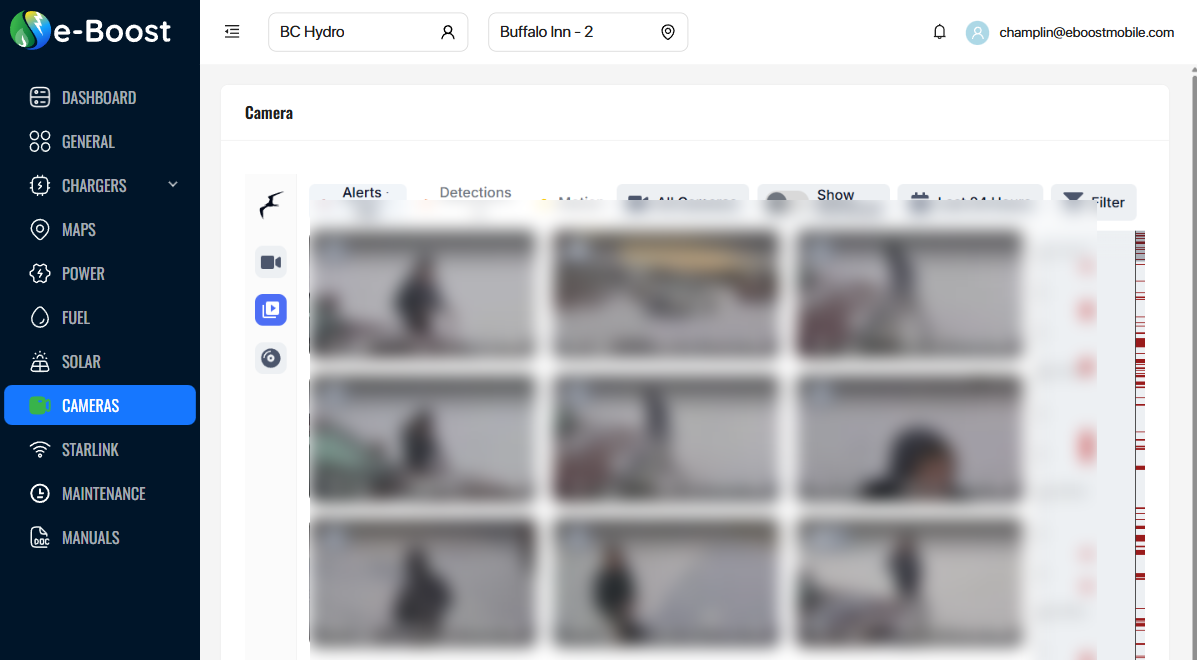
The Review view provides a historical timeline of detected events with video playback. Events are organized into two priority tiers:
| Tier | Description | Default Objects |
|---|---|---|
| Alerts | High-priority detections that require attention | person, car |
| Detections | Standard-priority detections for general awareness | All other detected objects |
Overlapping detections are consolidated into single review items — for example, a person, dog, and car appearing together are bundled into one review item. The review timeline supports multi-camera scrubbing for reviewing footage across all cameras simultaneously.
Export
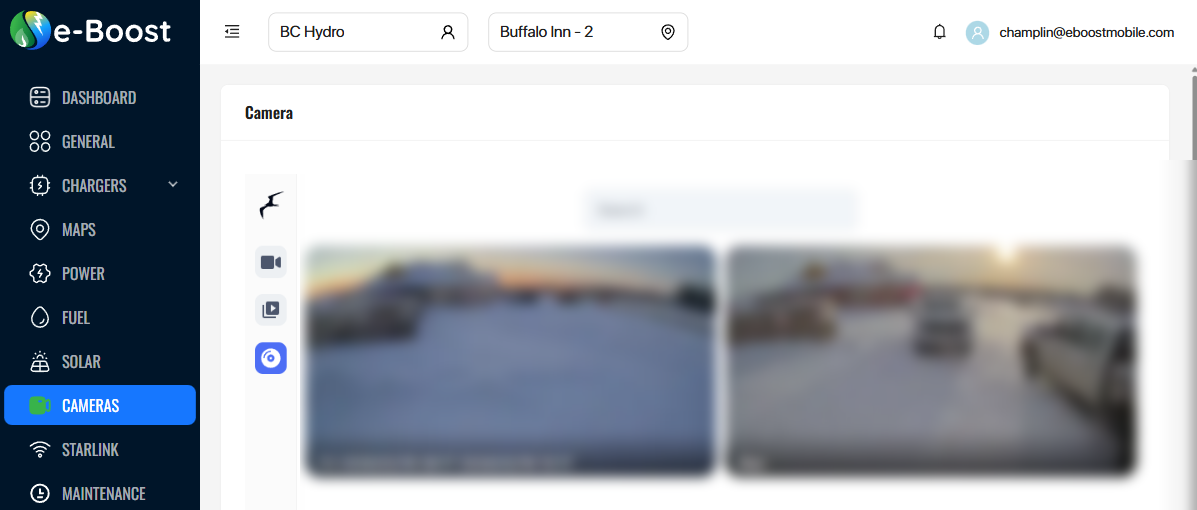
The Export view allows you to save and download specific video clips from camera recordings. This is useful for preserving footage of incidents, sharing clips with team members, or archiving important events.
Creating an Export
- Click the + (Create Export) icon in the sidebar, or navigate to a recording timeline and select a time range.
- Choose the camera and define the start/end time for the clip.
- Give the export a name for easy identification (e.g., "Alex", "Incident 02-19").
- The export is processed in the background and appears in the Export library when ready.
Export Library
The Export library displays all saved clips as thumbnail cards. Each card shows:
| Element | Description |
|---|---|
| Thumbnail | Preview image from the exported clip |
| Label | Camera name and date/time range (e.g., "C3 2026/02/19 09:17 2026/02/19 10:17"), or a custom name |
| Search | Search bar at the top to filter exports by name or camera |
Click any export card to play the clip or download it as an MP4 file. Exports can also be generated as time-lapse recordings at configurable speed (default 25x).
Recordings & Retention
Frigate writes recordings directly from the camera stream without re-encoding, capturing 10-second segments. Three retention modes are available:
| Mode | Description |
|---|---|
| All | Preserves every segment within the retention period |
| Motion | Keeps only segments where motion was detected |
| Active Objects | Retains only segments containing non-stationary tracked objects |
If storage drops below one hour remaining, Frigate automatically deletes the oldest 2 hours of recordings to prevent disk full conditions.
Zones & Masks
Zones are user-defined polygonal areas within a camera frame that enable targeted detection. For example, you can define zones around charging bays, entry points, or equipment areas so that only objects within those areas trigger alerts.
Masks exclude areas from detection to reduce false positives:
| Mask Type | Description |
|---|---|
| Motion Masks | Prevent motion from triggering detection in specific areas (e.g., timestamp overlays, sky, tree lines) |
| Object Filter Masks | Eliminate false positives for specific object types in fixed locations (e.g., mask rooftops to prevent false person detections) |
Both zones and masks can be configured visually using the built-in polygon editor in Frigate's Settings view.
Notifications
Frigate supports WebPush notifications for alert events. When a high-priority object (person or vehicle) is detected at the site, a push notification can be sent to registered devices.
- Notifications require HTTPS access to Frigate and a supported browser (Chrome, Firefox, Safari)
- Chrome supports images in notifications; Safari and Firefox show title and message only
- A configurable cooldown period (default 10 seconds) prevents notification flooding
- Camera-specific cooldowns are available for fine-tuned control
Audio Detection
In addition to visual object detection, Frigate can detect 500+ sound types using CPU-based audio analysis. Useful audio events for unmanned charging station monitoring include:
- Speech, yelling, or screaming
- Dog barking
- Fire alarms or smoke detectors
- Vehicle horns
- Glass breaking
On-Site Hardware
Frigate runs on a compact, low-power computing unit deployed at each e-Boost site. The system uses hardware acceleration for efficient video processing:
| Component | Role |
|---|---|
| Google Coral TPU | Dedicated AI accelerator (USB or M.2) that runs the TensorFlow Lite object detection model. Processes detections in under 10ms per frame, enabling real-time identification of people, vehicles, and animals across multiple camera streams simultaneously. |
| Intel CPU | General processing, motion detection, object tracking, and system management |
| Intel GPU | Hardware-accelerated video decoding via OpenVINO — decodes camera streams so the CPU and Coral TPU can process frames efficiently |
| IP Cameras | Wired (PoE) cameras providing RTSP streams for detection and recording |
Each camera provides two streams: a lower-resolution detect stream (sent to the Coral TPU for AI processing) and a higher-resolution record stream for saved footage.