Application Layout
The e-Boost Realm application uses a consistent layout across all pages, organized into seven key areas identified below.
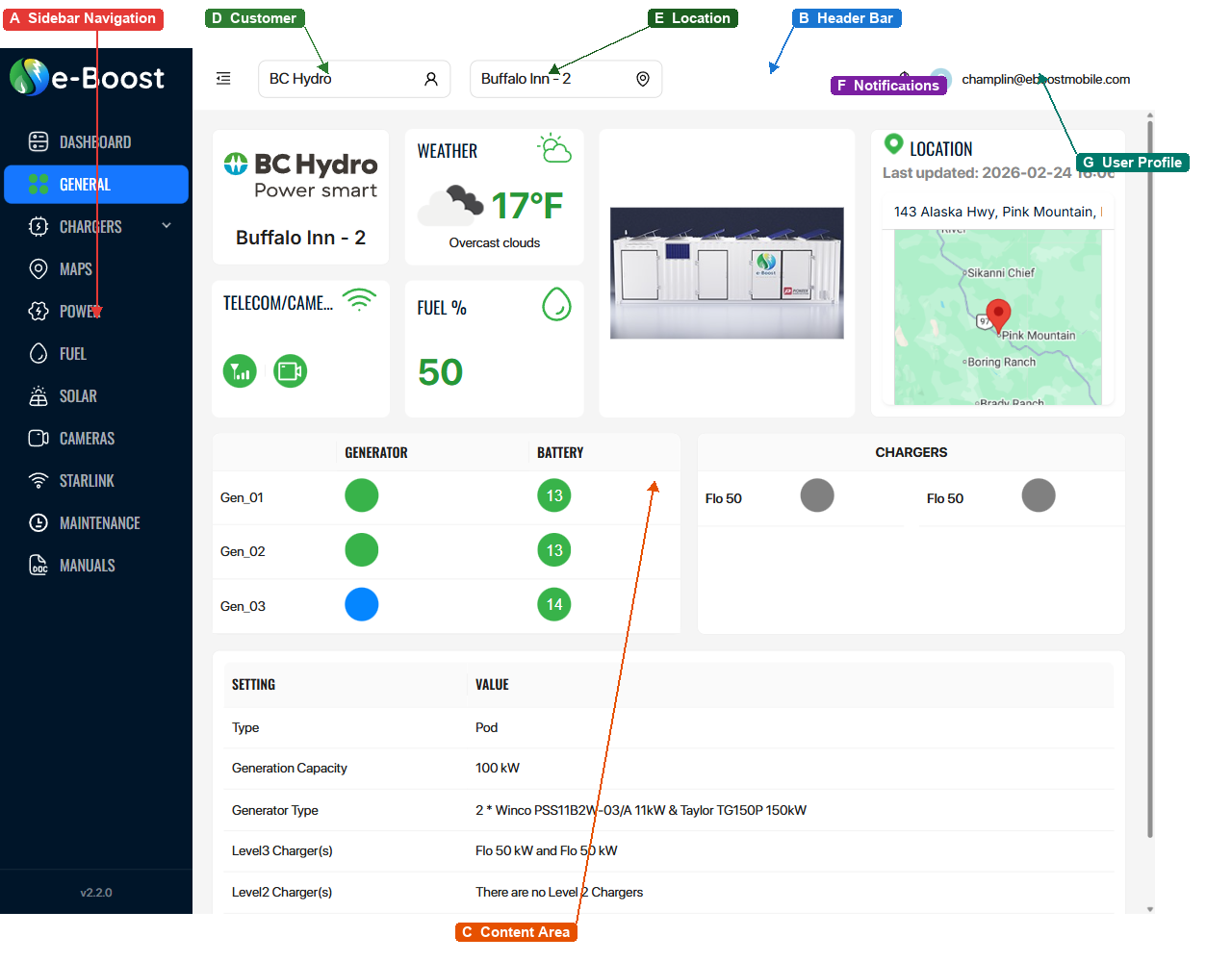
A — Sidebar Navigation
The left sidebar provides the primary navigation menu for the application. It contains:
| Element | Description |
|---|---|
| e-Boost Logo | Displayed at the top of the sidebar. Clicking it returns to the Dashboard. |
| Navigation Links | Icon + label for each page (e.g., Dashboard, General, Chargers, Power). The active page is highlighted. |
| Version Number | Application version shown at the bottom of the sidebar (e.g., v2.2.0). |
Customer-Level Navigation
When viewing the customer-level Dashboard (no specific location selected), the sidebar shows:
- Dashboard
- Global Maps
- Maintenance
- Manuals
Location-Level Navigation
When a specific location is selected, the sidebar expands to show all location pages:
- Dashboard
- General
- Chargers
- Maps
- Power
- Fuel
- Solar
- Cameras
- Starlink
- Maintenance
- Manuals
B — Header Bar
The top header bar spans the full width of the application. It contains the sidebar collapse button (menu-fold icon), the customer and location selectors, notifications, and the user profile. The menu-fold button toggles the sidebar open/closed to give more space to the content area.
C — Content Area
The main content area fills the remaining space to the right of the sidebar and below the header bar. It displays the active page content — such as the General overview, Power telemetry, Cameras dashboard, etc. The content updates when you navigate between pages or switch locations.
D — Customer Selector
Dropdown in the header bar to switch between customer accounts (e.g., BC Hydro, Amazon). Changing the customer updates the available locations and all data context throughout the application.
E — Location Selector
Dropdown in the header bar to switch between locations under the selected customer (e.g., Buffalo Inn - 2, Tetsa - 3). Selecting a location loads all page data for that specific site, including generators, chargers, fuel levels, cameras, and more.
F — Notifications
The bell icon displays system notifications and alerts. Click it to view recent notifications for the selected customer and location.
G — User Profile
Shows the logged-in user's email address (e.g., champlin@eboostmobile.com). Click to open a dropdown with:
- View Profile — opens your user profile and account settings
- Log Out — signs you out and returns to the login page