Maintenance
Manage maintenance tickets, history, and recurring scheduled tasks across all e-Boost locations.
ℹ️ Two Levels
The Maintenance page is available at both the customer level (showing all sites) and the location level (filtered to that location).
The Maintenance page is organized into three tabs: Upcoming, History, and Repetitive. Each tab includes an Action dropdown button and a search bar for filtering by site name or equipment.
Upcoming
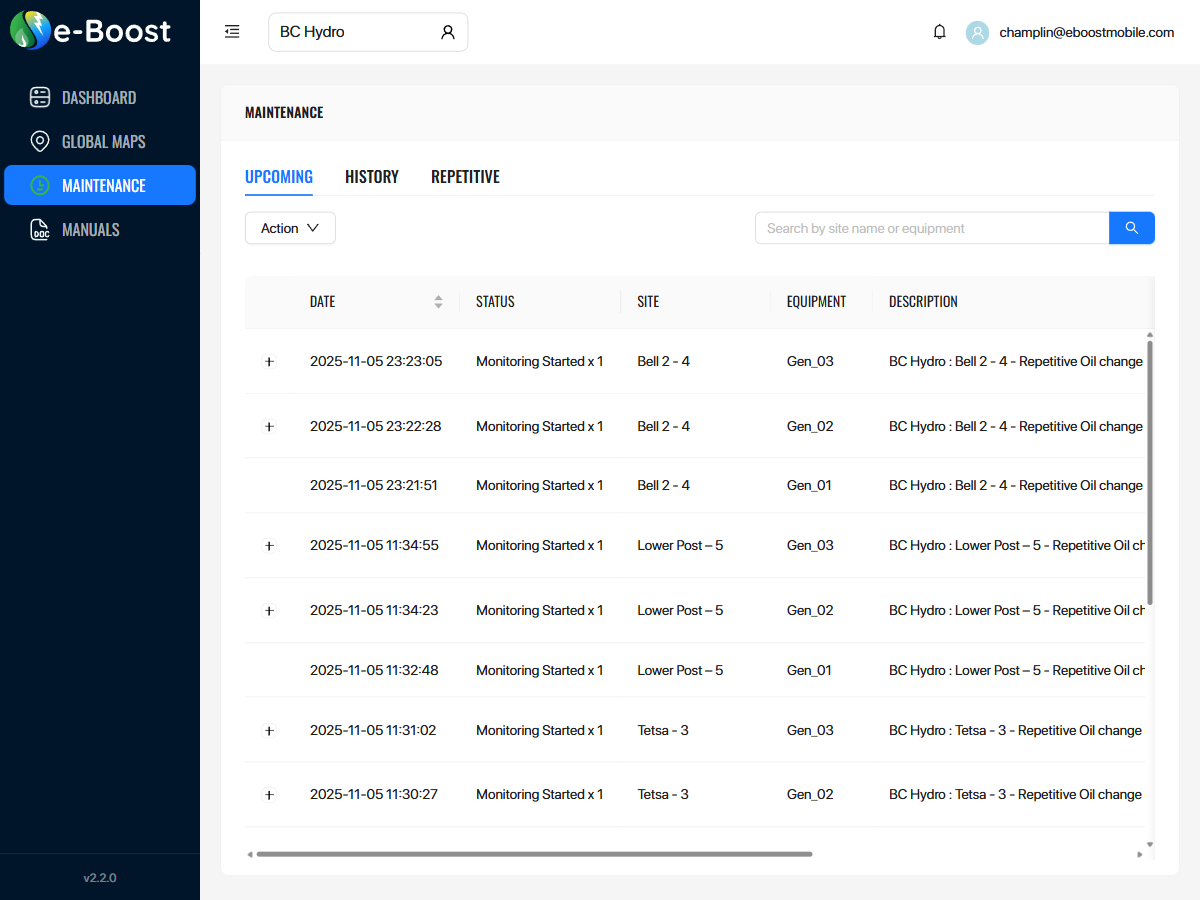
Maintenance — Upcoming tab showing open maintenance tickets for BC Hydro
The Upcoming tab displays open maintenance tickets that are actively being monitored. These tickets are automatically created when a repetitive maintenance rule triggers (e.g., engine hours reach the service interval).
Upcoming Columns
| Column | Description |
|---|
| Expand (+) | Click to expand the row and view additional ticket details |
| Date | Date and time the maintenance ticket was created (sortable) |
| Status | Current ticket status (e.g., "Monitoring Started x 1") |
| Site | Location name (e.g., "Bell 2 - 4", "Buffalo Inn - 2") |
| Equipment | Equipment identifier (e.g., "Gen_01", "Gen_02", "Gen_03") |
| Description | Full description of the maintenance task (e.g., "Repetitive Oil change every 200 hours : Gen_03") |
| Time until service | Engine hours remaining until service is due, shown with a progress bar indicating percentage completed |
| Ticket Portal | Close Ticket button to mark the maintenance as completed. Tickets with low remaining hours (near service) do not show a Close button. |
Upcoming Action Dropdown
| Action | Description |
|---|
| Refresh | Reload the ticket list with the latest data |
History
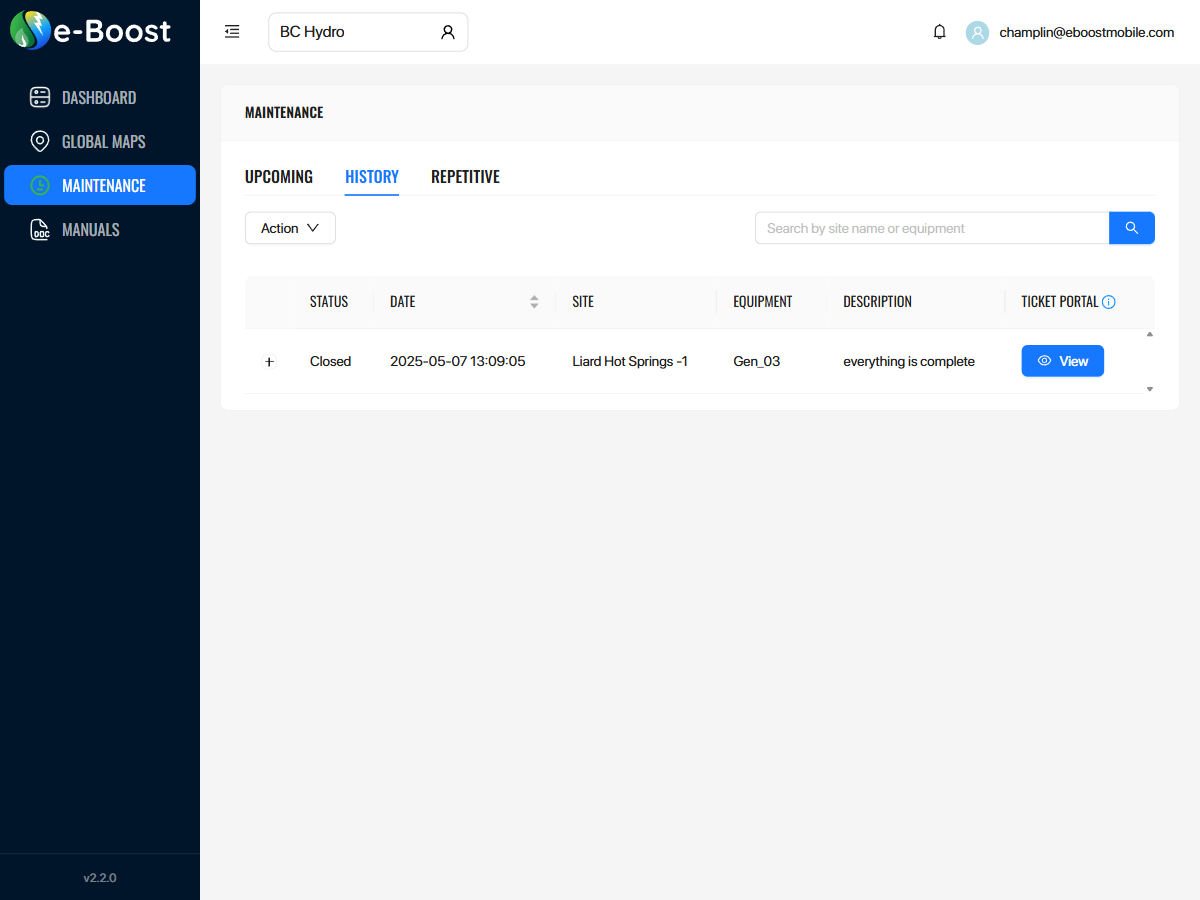
Maintenance — History tab showing completed/closed maintenance tickets
The History tab displays completed and closed maintenance tickets. Each row shows the final status and a link to view the ticket in the external ticket portal (Freshdesk).
History Columns
| Column | Description |
|---|
| Expand (+) | Click to expand the row and view additional ticket details |
| Status | Final ticket status (e.g., "Closed") |
| Date | Date and time the ticket was closed (sortable) |
| Site | Location name |
| Equipment | Equipment identifier |
| Description | Description of the completed maintenance (e.g., "everything is complete") |
| Ticket Portal | View button — opens the ticket in the Freshdesk ticket portal for full details and audit trail |
History Action Dropdown
| Action | Description |
|---|
| Refresh | Reload the history list with the latest data |
Repetitive
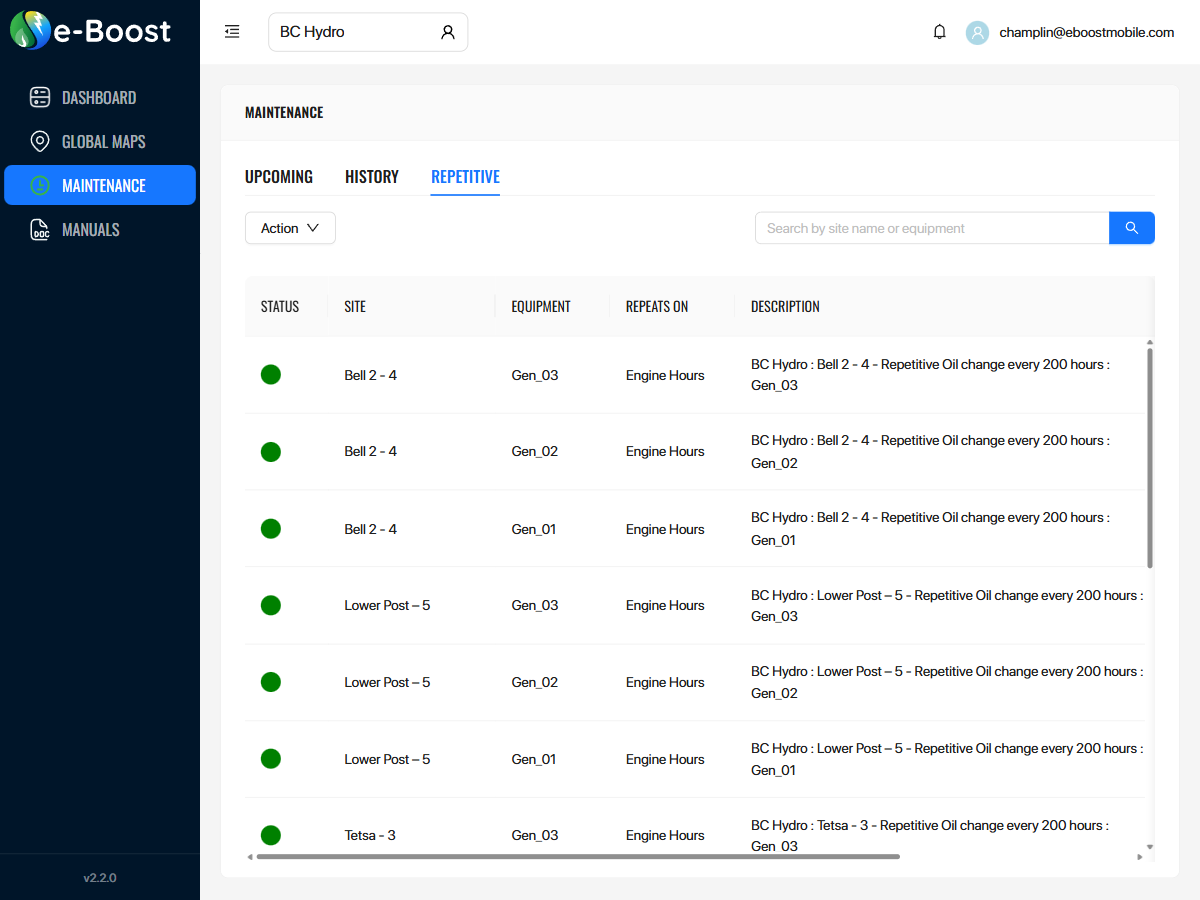
Maintenance — Repetitive tab showing recurring maintenance rules for all BC Hydro locations
The Repetitive tab manages recurring maintenance rules. When the monitored metric (e.g., engine hours) reaches the configured interval, a maintenance ticket is automatically created in the Upcoming tab and optionally in the external ticket portal (Freshdesk).
Repetitive Columns
| Column | Description |
|---|
| Status | Green dot indicates the rule is active |
| Site | Location name (e.g., "Bell 2 - 4", "Lower Post – 5") |
| Equipment | Equipment identifier (e.g., "Gen_01", "Gen_02", "Gen_03") |
| Repeats On | The metric that triggers the maintenance (e.g., "Engine Hours") |
| Description | Full description of the maintenance rule (e.g., "Repetitive Oil change every 200 hours : Gen_03") |
| Alert Threshold | Percentage of the interval at which the first warning is sent (e.g., "60 %") |
| Action | Row-level controls (see below) |
Repetitive Row Actions
Each row in the Repetitive tab includes three action controls:
| Icon | Action | Description |
|---|
| ✎ (pencil) | Edit | Opens the Update Maintenance dialog to modify the rule configuration (see below) |
| On/Off | Toggle | Enable or disable the repetitive maintenance rule without deleting it |
| 🗑 (trash) | Delete | Permanently remove the repetitive maintenance rule |
Repetitive Action Dropdown
| Action | Description |
|---|
| Add Repetitive Maintenance | Opens the creation dialog to define a new recurring maintenance rule |
| Refresh | Reload the list with the latest data |
Update Maintenance Dialog
Clicking the edit (pencil) icon on a Repetitive row opens the Update Maintenance dialog, which allows you to modify all aspects of the recurring maintenance rule:
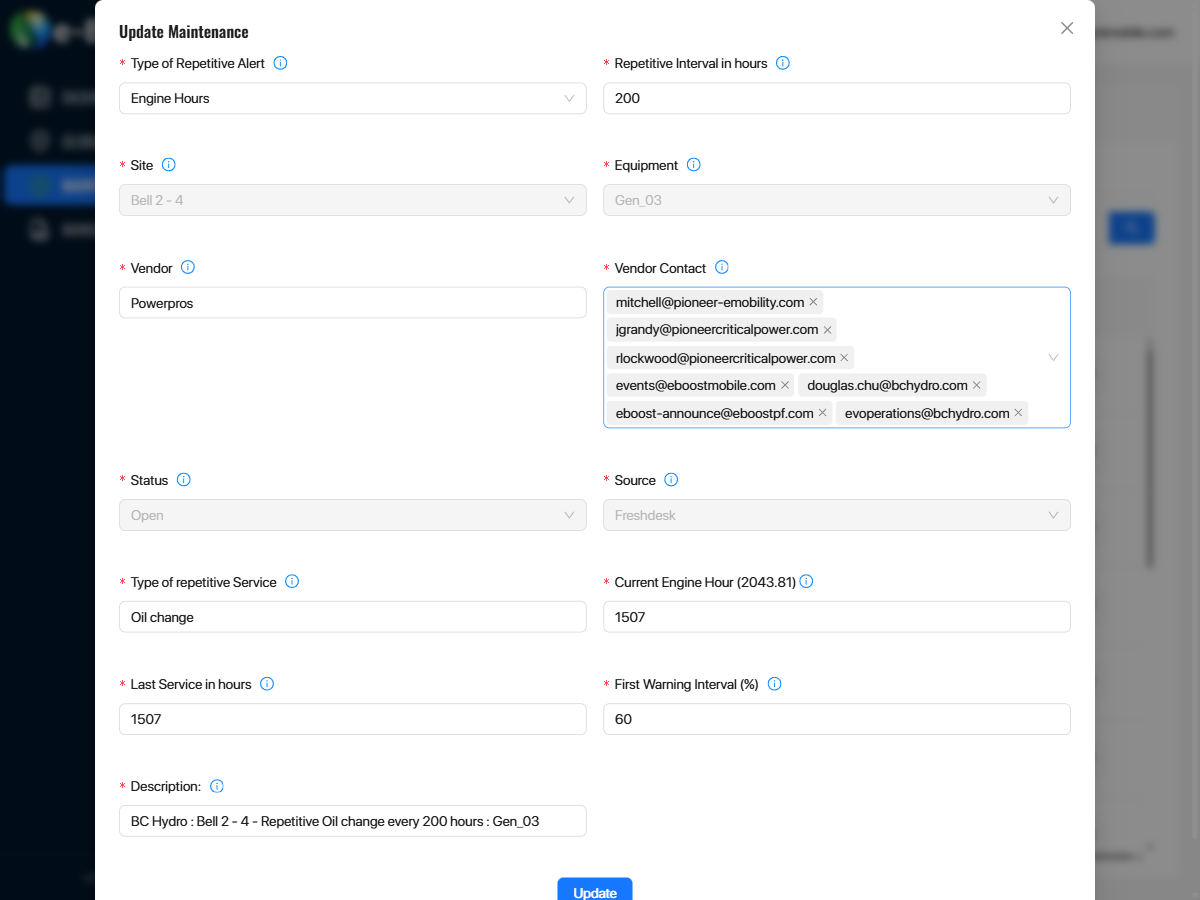
Update Maintenance dialog — editing a repetitive oil change rule for Bell 2 - 4 Gen_03
| Field | Description |
|---|
| Type of Repetitive Alert | The metric that triggers the alert (e.g., "Engine Hours") |
| Repetitive Interval in hours | The number of hours between each maintenance cycle (e.g., 200) |
| Site | The location this rule applies to (read-only after creation) |
| Equipment | The specific equipment being monitored (read-only after creation) |
| Vendor | The service vendor responsible for the maintenance (e.g., "Powerpros") |
| Vendor Contact | One or more email addresses that receive notifications when the maintenance is triggered. Supports multiple contacts. |
| Status | Current status of the rule (e.g., "Open") — read-only |
| Source | The ticket system integration (e.g., "Freshdesk") — read-only |
| Type of repetitive Service | Description of the service to be performed (e.g., "Oil change") |
| Current Engine Hour | The current engine hour reading from the equipment (shown in the label for reference) |
| Last Service in hours | The engine hour reading at which the last service was performed |
| First Warning Interval (%) | The percentage of the interval at which the first alert is sent (e.g., 60% of 200 hours = alert at 120 hours) |
| Description | Full description text that appears on the generated ticket |