Global Reports
Create, manage, and download reports across all customers and locations — including on-demand single reports and automated periodic reports.
The Global Reports page is organized into two tabs: Single Reports for on-demand downloads and Periodic Reports for automated scheduled delivery. Both tabs provide an Actions dropdown button with a Create Report option for adding new report definitions.
Single Reports
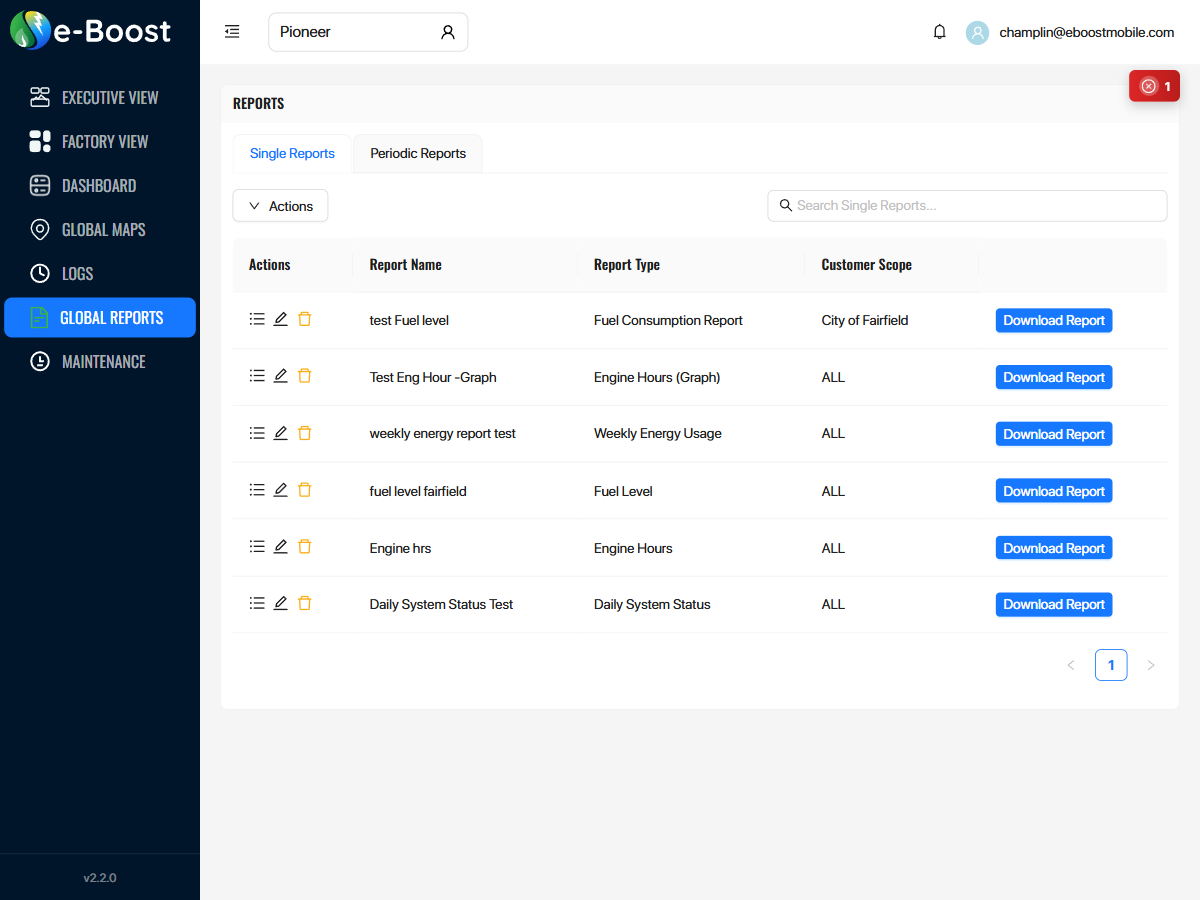
The Single Reports tab lists on-demand report definitions that can be generated and downloaded at any time. Each report row contains:
| Column | Description |
|---|---|
| Actions | Icons to view report details, edit the report configuration, or delete the report |
| Report Name | User-defined name for the report (e.g., "Engine hrs", "fuel level fairfield") |
| Report Type | The type of data included in the report (see Available Report Templates below) |
| Customer Scope | Which customer's data is included — a specific customer (e.g., "City of Fairfield", "BC Hydro") or "ALL" for cross-customer reports |
| Download Report | Click to generate and download the report immediately |
Creating a Single Report
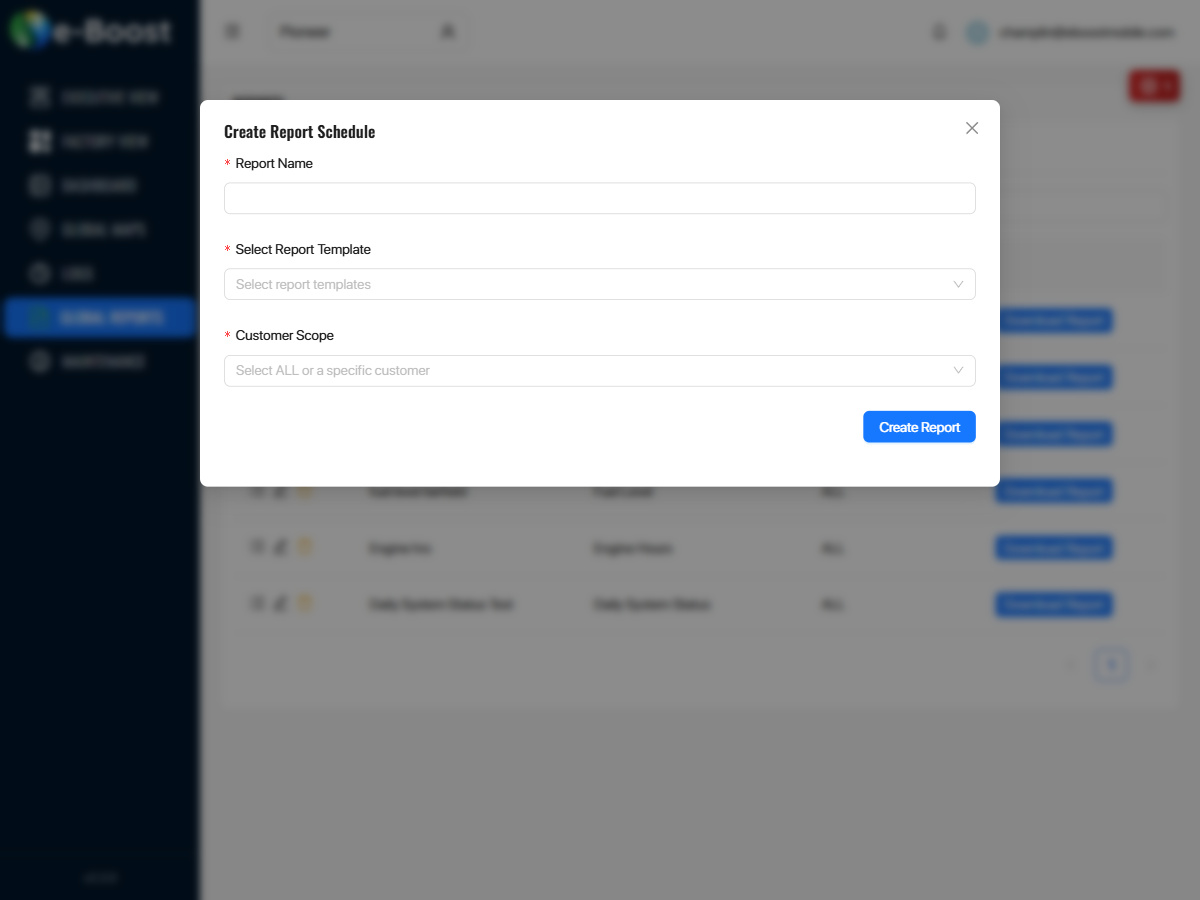
Click the Actions dropdown above the report table and select Create Report. The creation dialog requires:
| Field | Description |
|---|---|
| Report Name | A descriptive label for the report |
| Select Report Template | The type of data to include (see Available Report Templates below) |
| Customer Scope | Select "ALL" for cross-customer data or a specific customer |
Periodic Reports
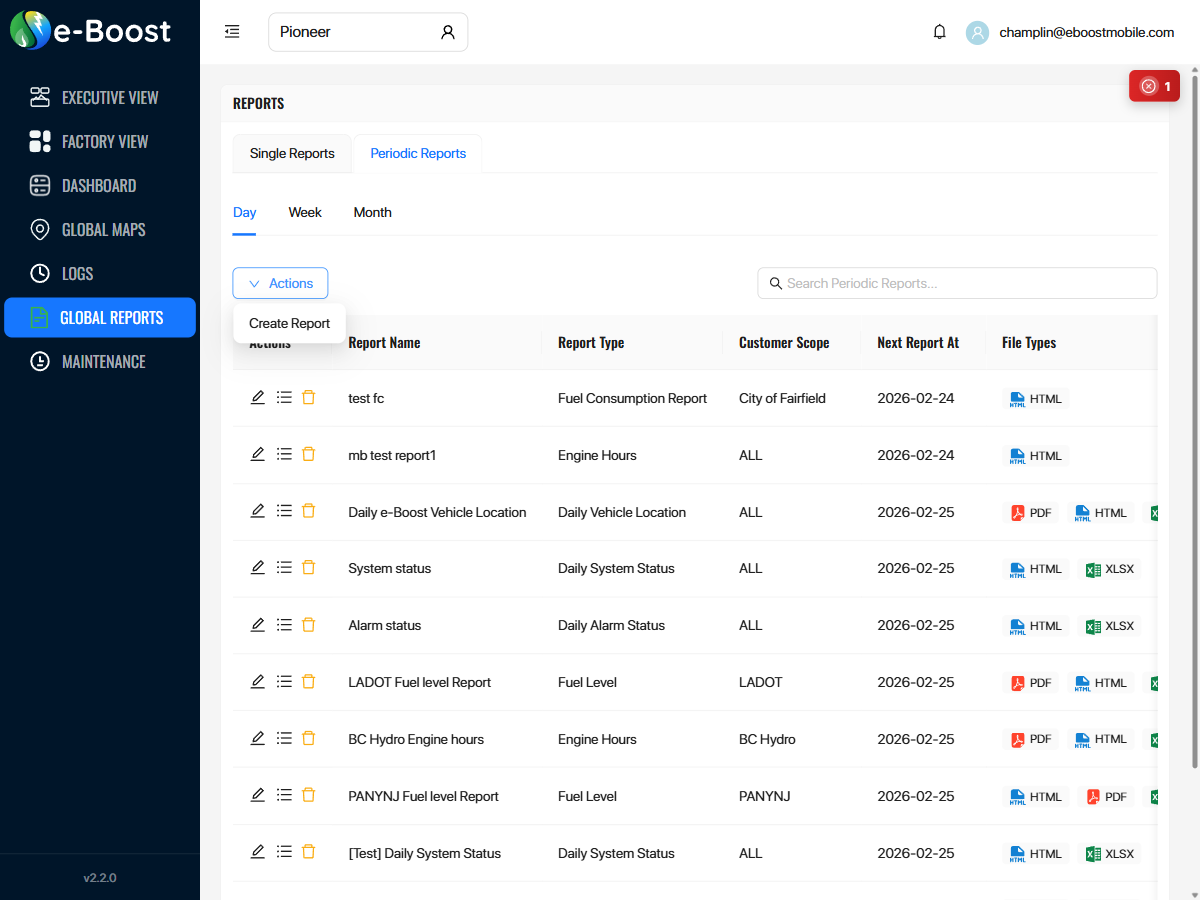
The Periodic Reports tab manages automated reports that are generated and delivered on a recurring schedule via email. Reports can be scheduled at three frequencies using the sub-tabs:
| Frequency | Description |
|---|---|
| Day | Report generated and emailed once per day |
| Week | Report generated and emailed once per week |
| Month | Report generated and emailed once per month |
Periodic Report Columns
| Column | Description |
|---|---|
| Actions | Icons to edit, view history, or delete the periodic report |
| Report Name | User-defined name (e.g., "System status", "BC Hydro Engine hours") |
| Report Type | The type of data included (see Available Report Templates below) |
| Customer Scope | Target customer or "ALL" for all customers |
| Next Report At | The date the next report will be automatically generated |
| File Types | Output format(s) for the report — PDF, HTML, and/or XLSX. Multiple formats can be selected per report. |
| Report Status | On/Off toggle to enable or disable the periodic report without deleting it |
| Trigger | Manually trigger the report to generate immediately, outside of its normal schedule |
Creating a Periodic Report
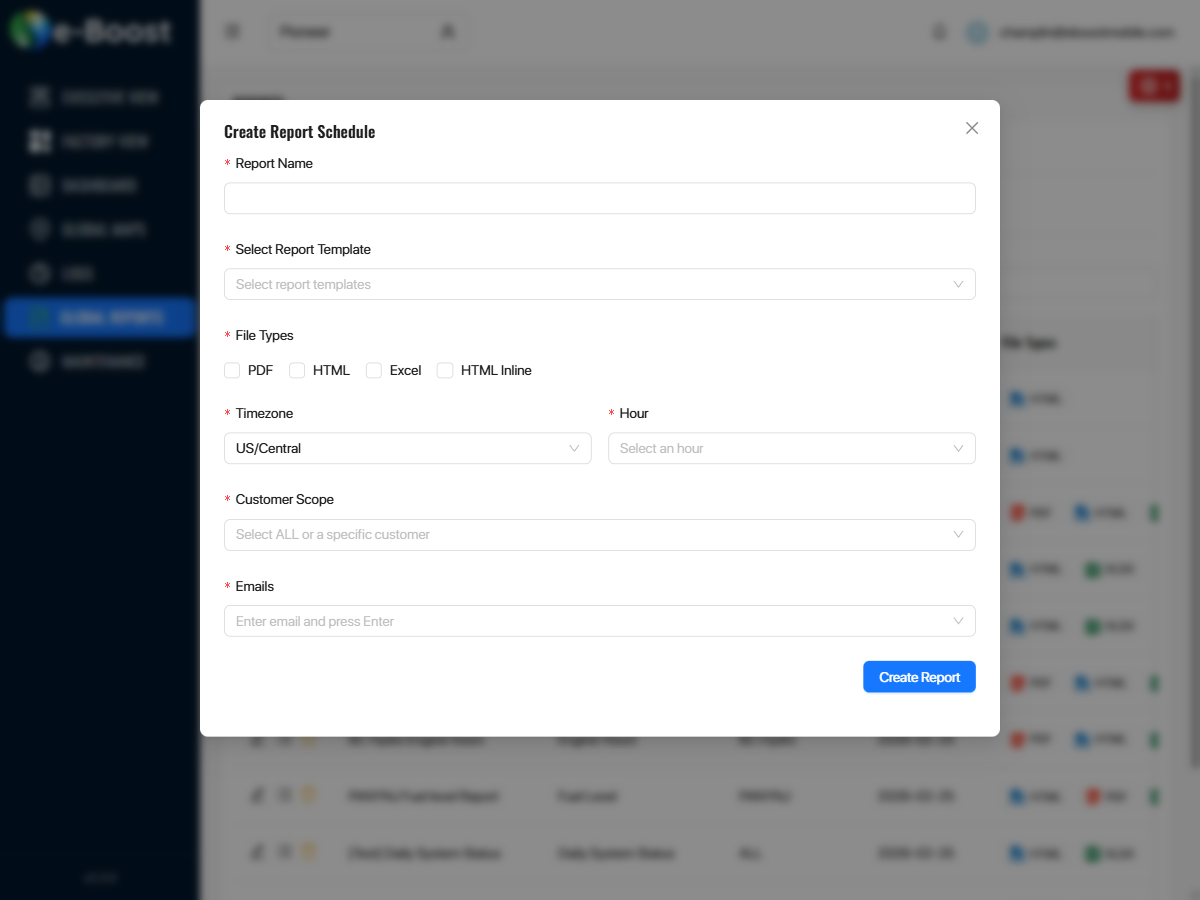
Click the Actions dropdown above the report table and select Create Report. The creation dialog requires:
| Field | Description |
|---|---|
| Report Name | A descriptive label for the report |
| Select Report Template | The type of data to include (see Available Report Templates below) |
| File Types | One or more output formats: PDF, HTML, Excel, or HTML Inline |
| Timezone | Timezone for the report schedule (e.g., US/Central) |
| Hour | The hour of day when the report should be generated |
| Customer Scope | Select "ALL" for cross-customer data or a specific customer |
| Emails | One or more email addresses to receive the generated report |
Available Report Templates
Both Single and Periodic reports share the same set of report templates. When creating a report, the following templates are available:
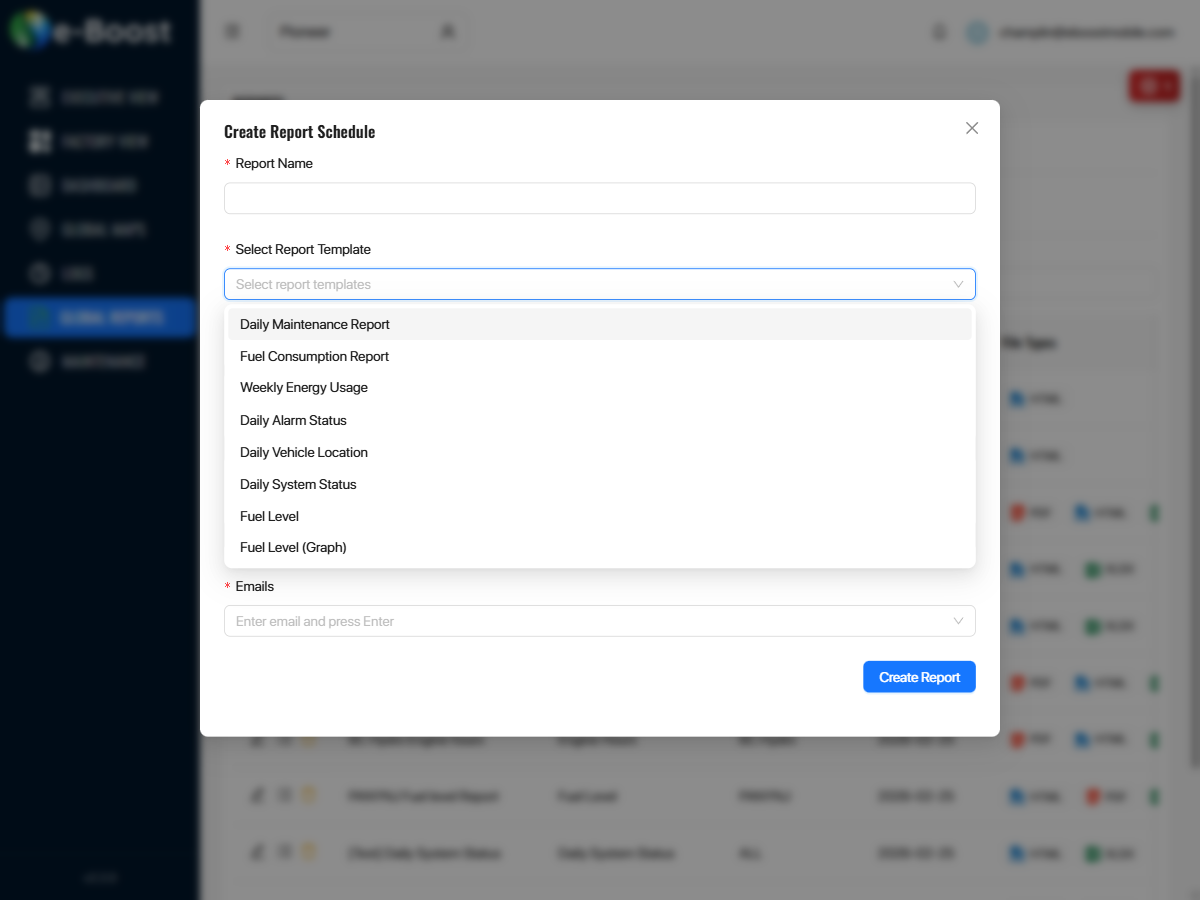
| Report Template | Description |
|---|---|
| Daily Maintenance Report | Summary of maintenance activities and service tasks across locations |
| Fuel Consumption Report | Propane fuel consumption data across locations over the reporting period |
| Weekly Energy Usage | Total energy generated and consumed per location over the past week |
| Daily Alarm Status | Daily summary of all active alarms and fault conditions across locations |
| Daily Vehicle Location | Daily report of GPS positions for all e-Boost units, showing where each unit is deployed |
| Daily System Status | Daily summary of system health, generator status, and alarm conditions |
| Fuel Level | Current and historical fuel tank levels for all locations |
| Fuel Level (Graph) | Fuel level data presented as a visual graph for trend analysis |
| Engine Hours | Total runtime hours for each generator, useful for maintenance scheduling |
| Engine Hours (Graph) | Engine hours data presented as a visual graph for trend analysis |